
This Good Lock Notification Feature Is Making a Comeback in One UI 8.5
Samsung continuously enhances the Good Lock app with each new One UI release, adding more customization options that allow users to personalize their interface beyond the default settings. However, the company sometimes removes certain features during these updates. One such feature is the notification lock option found in Good Lock’s NotiStar module.
This Good Lock notification feature, when enabled, ensured that notifications from selected apps remained visible in the notification shade even after the user pressed the ‘Clear all’ button. Unfortunately, Samsung removed this option from NotiStar with the launch of One UI 8, which disappointed many users who relied on it. Fortunately, a moderator from the Good Lock team has now confirmed on Samsung’s community forums that this feature will return and function again in One UI 8.5.
Return of This Good Lock Notification Feature in One UI 8.5
The good news is that most devices that received One UI 8 are expected to get the One UI 8.5 update as well, even if One UI 8 was their last major operating system upgrade. This means users who depended on this notification lock feature will not lose hope. However, they will need to be patient, as Samsung plans to restore this functionality to NotiStar only after the stable version of One UI 8.5 begins rolling out. This rollout is not expected to happen until 2026.
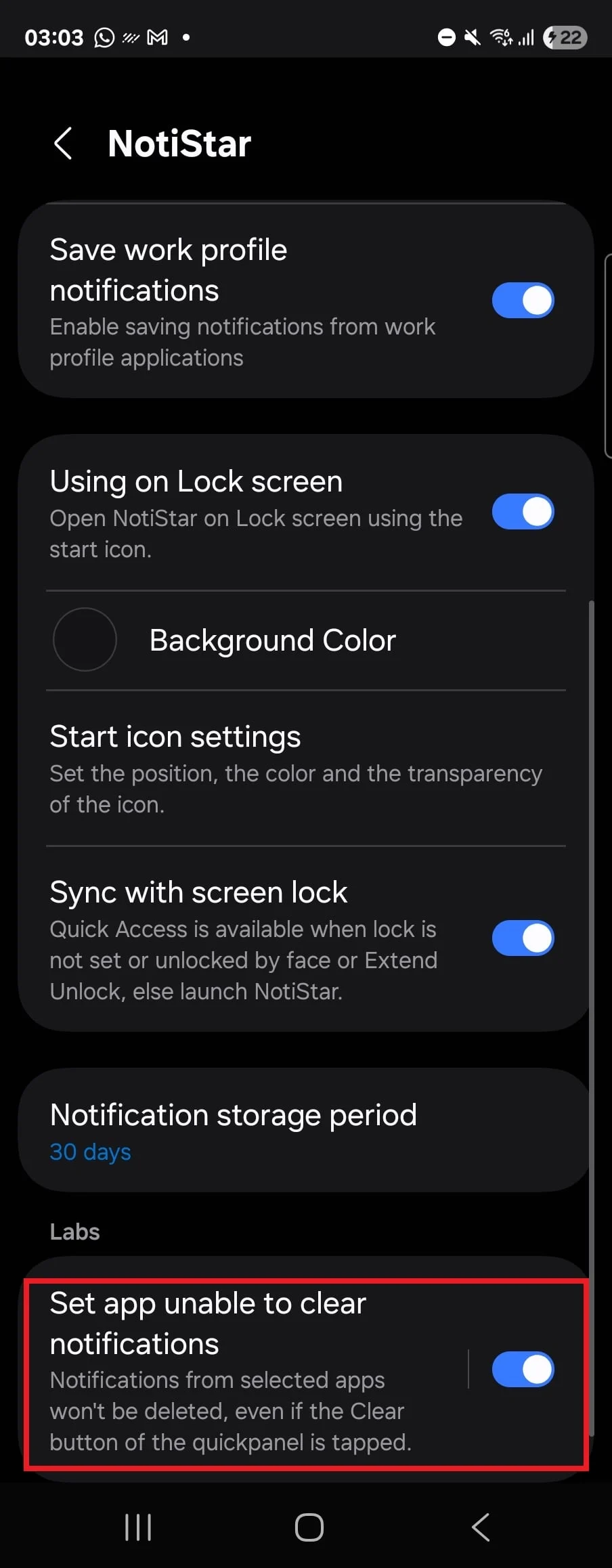
Until then, users who want to experience this feature on their Galaxy phones running older versions of One UI can do so by installing Good Lock from the Play Store, if they have not already done so. After opening Good Lock, they should install the NotiStar module from the Plugins tab. Once NotiStar is open, users can enable it by toggling the switch at the top of the screen. Then, by scrolling to the bottom and tapping “Set app unable to clear notifications,” they can select the apps whose notifications they want to keep permanently visible in the notification shade.
How to Use the Notification Lock Feature Today
For those who want to try out this Good Lock notification feature right now, the process is straightforward. First, install the Good Lock app from the Play Store if it is not already on your device. Next, open Good Lock and navigate to the Plugins tab to find and install the NotiStar module. After launching NotiStar, activate it by toggling the switch at the top of the interface.
Once activated, scroll down to the bottom of the NotiStar settings and tap on “Set app unable to clear notifications.” This will bring up a list of installed apps. Select the apps whose notifications you want to remain in the notification shade, even after using the ‘Clear all’ option. This setup ensures that important notifications are not accidentally dismissed, providing better control over your notification management.
In summary, Samsung is bringing back this Good Lock notification feature in the upcoming One UI 8.5 update. While users will have to wait until the stable release in 2026 for official support, those on older versions of One UI can still use the feature today by installing and configuring NotiStar through Good Lock. This return of the notification lock option will be a welcome improvement for many Samsung users who value persistent notifications.
For more stories on this topic, visit our category page.
Source: original article.