
How to Boost Xbox Cloud Gaming Quality on Your Samsung TV
Microsoft has recently expanded Xbox Cloud Gaming to more countries, allowing Samsung TV users in those regions to enjoy console-quality games with high-quality graphics without needing to buy a gaming console. If you are one of the many gamers playing on your Samsung TV through Xbox Cloud Gaming, you might not be experiencing the best graphics quality available. There is a simple change you can make to boost Xbox Cloud Gaming quality on your Samsung TV and enjoy a much better visual experience.
Xbox Cloud Gaming is accessible through an Xbox Game Pass subscription. The Essential tier supports streaming games at up to Full HD (1080p) resolution, while the Ultimate tier allows streaming at up to QHD (1440p) resolution. However, this does not guarantee that games are always streamed at these maximum resolutions. In fact, the service might be streaming games at a lower resolution, sometimes as low as 720p. Fortunately, you can manually adjust the streaming resolution to improve your gaming visuals.
How to Set Xbox Cloud Gaming Resolution on Samsung TV
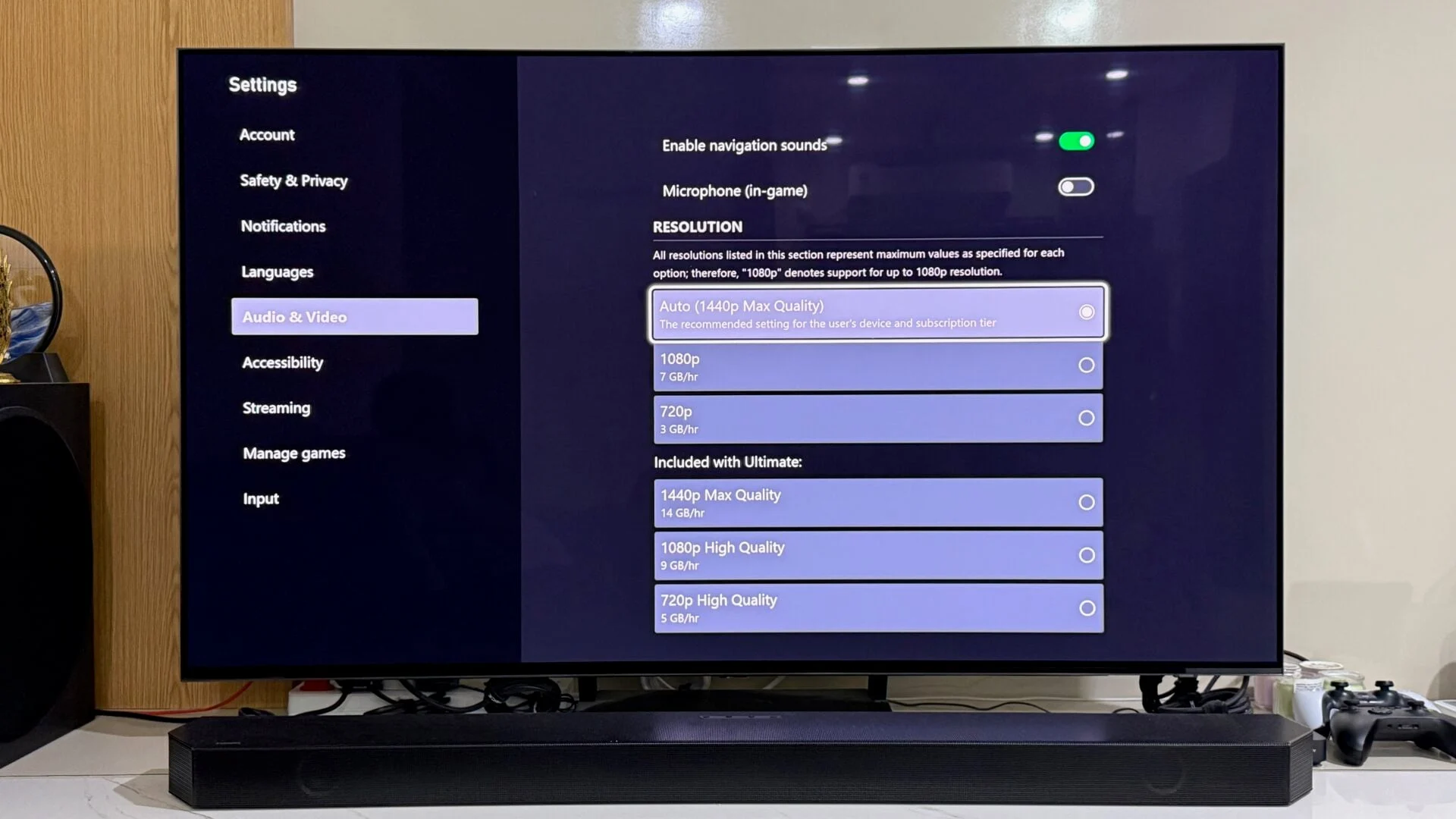
To boost Xbox Cloud Gaming quality on your Samsung TV, you need to change the resolution settings in the Xbox app. Start by opening the Xbox app on your Samsung TV. Using your remote or a controller, select the Xbox icon located at the top-left corner of the screen. Then navigate to Settings, and from there, go to Audio & Video.
In the Resolution section, you will notice that the default setting is Auto. This means the app automatically adjusts the streaming resolution based on several factors, including your network speed. The resolution can vary from 720p to 1440p depending on these conditions. However, you have the option to manually select a higher resolution for better graphics.
The available resolution options include 720p, 720p High Quality, 1080p, 1080p High Quality, and 1440p Max Quality. If you have the Xbox Game Pass Essential subscription, it is best to select 1080p High Quality to get the best possible graphics. For those with the Xbox Game Pass Ultimate subscription, choosing 1440p Max Quality will provide the highest streaming resolution and the best visual experience.
Consider Internet Speed and Data Usage
When adjusting your streaming resolution, it is important to ensure that your internet connection is fast enough to support the higher quality settings. Streaming at higher resolutions requires more bandwidth, and a slow connection could lead to stuttering or lag during gameplay.
Microsoft provides data usage estimates for each resolution and quality setting. Streaming at 720p uses about 3GB of data per hour, while 720p High Quality uses 5GB per hour. At 1080p, the data usage increases to 7GB per hour, and 1080p High Quality uses 9GB per hour. The highest setting, 1440p Max Quality, consumes around 14GB of data per hour.
By selecting the appropriate resolution based on your subscription tier and internet speed, you can significantly boost Xbox Cloud Gaming quality on your Samsung TV. This simple change allows you to enjoy smoother gameplay with sharper graphics, making your gaming sessions more immersive and enjoyable.
For more stories on this topic, visit our category page.
Source: original article.